
eSIM FAQ & Activation Guide
Everything you need to know before buying a travel eSIM
BEFORE YOU BUY
Three checks. One phone ready to travel.
1. Exact model and region
Check the full model and regional variant in the manufacturer specifications. A familiar phone name is not enough.
2. eSIM support
Look for Add eSIM in SIM settings or an EID in device information. Confirm support for your exact version.
3. Carrier unlocked
Your phone must accept other networks. Ask your carrier if the lock status is unclear.
Phone & compatibility
Three checks: exact model and regional version, eSIM support, and carrier unlock.
iPhone: Settings → General → About. Check for an EID and that Carrier Lock says “No SIM restrictions”. Also confirm eSIM support for your regional model.
Android: Settings → Connections/SIM manager or Network & Internet → SIMs. Look for Add eSIM, then confirm your exact model and carrier unlock with your manufacturer/carrier.
Provider’s device list & installation referencesWhat is an eSIM and how does it work?
An eSIM is a digital SIM that lets a compatible device use a mobile plan without inserting a physical SIM. Install it over Wi-Fi using the supplied QR code and follow the plan's activation instructions.
Does my iPhone support eSIM?
Support depends on the exact model, country or region of purchase, and carrier restrictions. Before buying, confirm eSIM support for your specific model with Apple and check that your phone is carrier-unlocked. An Add eSIM option in cellular settings can help you check, but a model name alone is not enough.
Which Android phones support eSIM?
Support varies by manufacturer, exact model, regional version, and carrier. Check your manufacturer's specifications for your device and confirm it is carrier-unlocked before buying. Do not assume every phone in a Galaxy, Pixel, or other product family supports eSIM.
Can I keep my primary SIM alongside the eSIM?
Yes, if your specific device supports the required dual-SIM combination. Select the travel eSIM for mobile data. Your primary line can remain available for calls and SMS, but carrier charges may apply. Review its roaming settings and disable automatic data switching if you want to avoid using primary-line data.
Can I use WhatsApp and SMS verification codes?
WhatsApp can use your travel eSIM's data while keeping its registered number. A data-only plan does not receive SMS verification codes. Keep your primary line available if you need codes sent to that number; reception depends on your carrier and roaming service, and carrier charges may apply.
Can I use one eSIM on multiple devices?
An eSIM profile is intended for one device, not simultaneous use on several devices. Do not assume it can be transferred or that its QR code can be reused. Purchase a separate plan for another device, or check whether your plan allows hotspot sharing.
When your plan starts
When does my plan start: purchase, installation or arrival?
Look at “Starts” on the plan card. First connection means validity begins when the eSIM connects to a supported destination network; installation means the clock starts when the profile is installed; immediate-purchase plans start when the provider order is placed and cannot be canceled/refunded after that. Immediate plans can also have limited usage/status tracking. Buy those only when ready to use them. Unknown conditions must be confirmed with support before payment.
Can I buy now and install before my trip?
Check the activation trigger and any install/activation window shown on the plan. First-network-connection plans can usually be installed ahead over Wi-Fi, but may activate if you are already in a covered country. Installation-triggered plans start on installation. Immediate-purchase plans start when ordered: buy only when ready. Do not assume every eSIM has a 180-day window.
What if my trip changes or I visit several countries?
Check that every destination is listed in your plan’s covered countries; “regional” does not mean every country in that region. The clock does not pause while outside coverage or in airplane mode after activation. Trip changes do not automatically extend validity. Contact support about an unused plan before installing; eligibility follows our Refund Policy and the provider’s plan conditions.
Installation & settings
Do I need internet to install an eSIM?
Yes. Connect to reliable Wi-Fi or another working internet connection to download the eSIM profile. Save the QR and instructions securely before departure. The QR is a private installation credential; do not share it publicly. Once installed, mobile data requires a covered network and a valid plan.
How do I install if the QR email is on the same phone?
Display the QR on another device or a printout, then scan it from Add eSIM in your phone settings. Alternatively use the SM-DP+ address and activation code supplied with your order. Some phones support importing a saved QR image; this depends on the model and software. We do not promise one-tap installation for every device.
What if my QR code does not scan?
Connect to stable Wi-Fi, open the device's Add eSIM settings, and display the QR clearly on another screen or a printout. Use manual installation details only if supplied, following the provider's instructions. If the code is already used or still fails, contact contact@esimstore.online. Do not delete an installed profile to retry.
Should I enable data roaming?
Some travel eSIMs require data roaming on the travel line. Follow the provider's instructions for that eSIM. Review your primary line separately: roaming, calls, SMS, or automatic data switching may incur charges from your regular carrier.
I deleted my eSIM. Can I reinstall it?
Do not assume the QR code can be reused or the profile reinstalled. Contact contact@esimstore.online with your order ID and device details before attempting another installation. Recovery or replacement depends on the provider and is not guaranteed.
Coverage, networks & data
Which local carrier will my eSIM use?
Open “Covered countries & networks” on the plan card to see the country-specific operators and network types supplied for that exact plan by eSIM Access. Regional/global plans can list several countries. Your phone connects to an available supported partner; a listed carrier is not a guarantee of signal everywhere or a fixed connection. Ask support before buying if operator details are unavailable.
Is 5G guaranteed, and why might my connection be slow?
No. Listed 4G/5G describes supported technology; your phone, local signal, congestion, roaming partner and plan fair-use policy determine actual service. International routing through the listed data-exit country can affect latency and location-based apps. Check coverage and speed/FUP details, and download important maps for offline use.
Can I share data with my laptop or another phone?
Yes: eSIM Access enables hotspot/tethering, subject to your phone supporting it. Select the travel eSIM for data, enable its required roaming settings, and turn on Personal Hotspot or Wi-Fi hotspot. Shared traffic uses the same allowance and fair-use limits. Follow the delivered APN instructions if hotspot does not work; do not guess APN values.
Does my plan include calls, SMS, or a phone number?
Treat the plan as data-only unless the offer explicitly includes calls or SMS. Mobile data supports internet messaging and calling apps, but does not itself provide a telephone number, standard voice minutes, or SMS reception. Check any explicitly included service's limits.
How much data should I choose?
Maps, messaging and email generally use less data than video calls, streaming, cloud backups or laptop tethering. Choose an allowance for your trip length and habits, use Wi-Fi for large downloads, disable background backups and check your device’s mobile-data counter. The counter is an estimate, not the provider’s final usage record. Check whether the allowance is total or per day.
Can I top up or extend my plan?
Do not assume your plan can be topped up or extended. Check its offer details and contact support to confirm available options. A separate purchase creates a new eSIM profile; check your device's profile capacity and follow the new plan's installation instructions.
What happens when I use all my data or the plan expires?
Connectivity may stop, or speed may change if the plan expressly provides for it. Check the allowance, validity, and fair-use conditions. Contact support about available options; do not assume automatic renewal, a top-up, or continued data service.
Orders, troubleshooting & refunds
I saw a payment error or have not received my QR email. What should I do?
Wait up to 1 hour for payment verification and the QR email. Do not pay again during this time. If payment is confirmed, your order remains recorded; confirmation triggers the QR email when the eSIM is ready. This does not guarantee that every payment or activation will succeed automatically. If the issue remains after 1 hour, contact contact@esimstore.online with your checkout email and order ID, if available.
Where is my order or QR email?
Check the inbox, spam, and promotions folders for the email address used at checkout. Confirmed payment triggers the QR email when the eSIM is ready. Allow up to 1 hour for verification and delivery, and do not pay again while waiting. If it is still missing after that, contact contact@esimstore.online with your email and order ID, if available.
What should I check if I have no mobile data?
Check that you are within the plan's coverage, it is valid and has data remaining, and the travel eSIM is enabled and selected for mobile data. Check data roaming and APN settings according to the provider's instructions; do not invent APN values. Try airplane mode briefly or restart the phone. If it still fails, contact support without deleting the eSIM.
How do I request a refund?
Email contact@esimstore.online within 14 days of purchase with your order ID, email, and a short issue description. Eligibility is assessed under the Refund Policy, including provider failure, duplicate charges, or verified unresolved technical faults. Used plans, incompatible-device purchases, and expiration after successful activation are generally not refundable. Approval is not guaranteed; approved refunds return to the original payment method, typically posting in 5–10 business days.
What should I send support if installation or data fails?
Email contact@esimstore.online with your order ID, checkout email, exact phone model, current country, error message and screenshots of relevant eSIM/mobile-data settings. Do not send card details, passwords or publish your QR. Keep the installed profile while we investigate. Support is by email; we do not promise an instant response or 24/7 live support. A QR error does not automatically guarantee a refund: see the Refund Policy.
PREVIEW YOUR SETUP
Know what to do before you land.
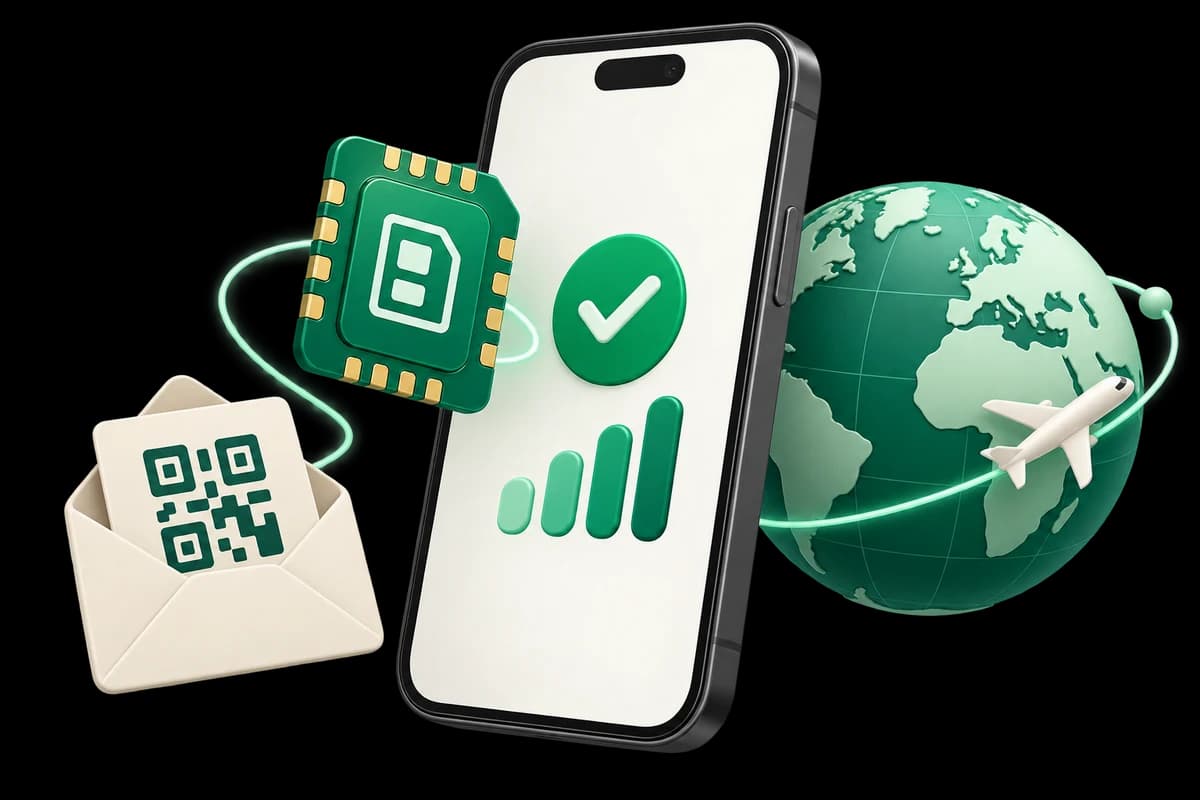
Installation adds an eSIM to your phone. Activation starts the plan clock. Check your plan’s start condition before installing.
- 1
Check before buying
Confirm an unlocked, eSIM-compatible phone. Compare covered countries, networks, data and the activation trigger.
- 2
Receive your eSIM
After confirmed payment, your QR and instructions arrive at your checkout email. Check spam; allow up to 1 hour and contact us if missing. Do not pay twice.
- 3
Install over Wi-Fi
Open Add eSIM in your phone settings. Scan the QR from another screen, or enter the supplied manual details. Install only when your plan’s start rule allows.
- 4
Connect at your destination
Select the travel eSIM for mobile data and enable its data roaming as instructed. Disable primary-line data roaming and automatic data switching.
YOUR INSTALLATION WALKTHROUGH
Follow the route for your phone.
Choose your device and installation method. Menu names vary by model and software version; these diagrams explain the process.
Phone type
Installation method
Settings
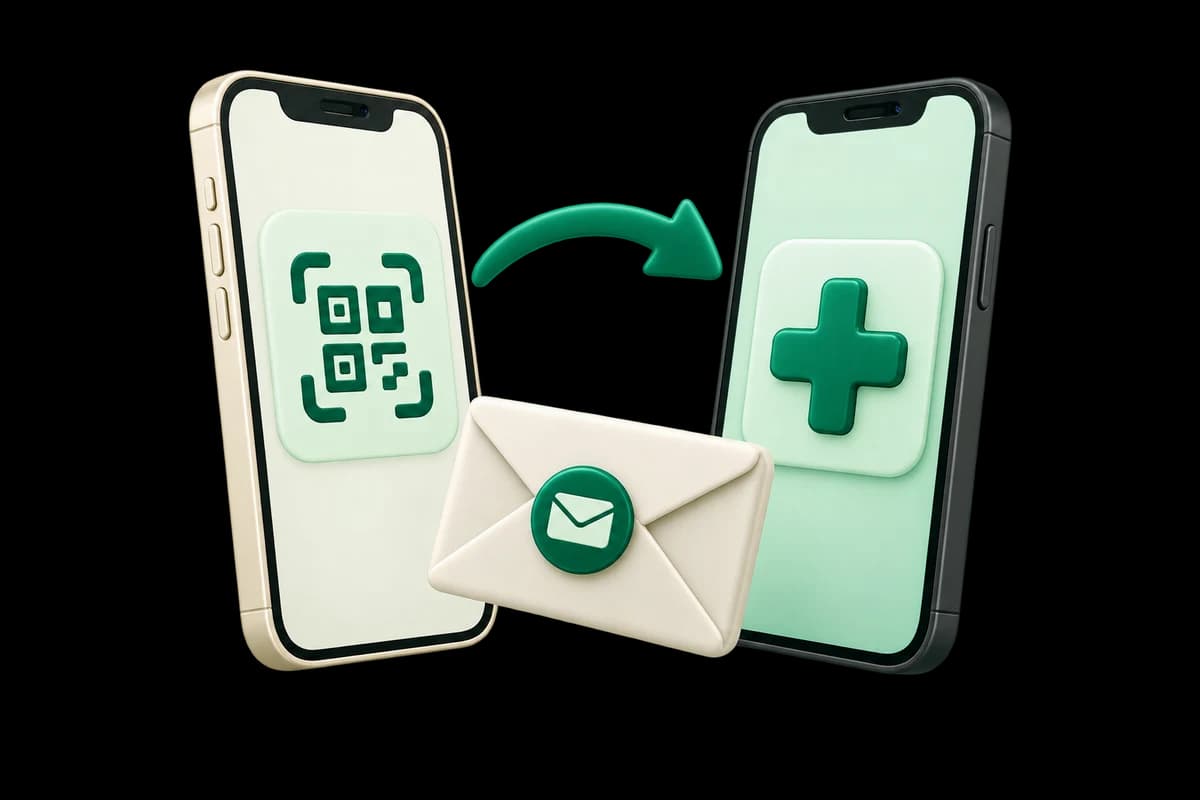
iPhone · Illustrative diagram
- 1
Get ready
Connect to reliable Wi-Fi and check your plan’s start condition before installing.
- 2
Open SIM settings
Settings → Cellular/Mobile Data → Add eSIM → Use QR Code. Menu names vary by iOS version.
- 3
Add the profile
Display your order QR on another screen or printout. Scan it inside Add eSIM and follow the prompts. Keep the QR private: it contains your eSIM installation details.
- 4
Choose travel data
At your destination, select the travel eSIM for mobile data and follow its data-roaming instructions.
Installing may start the validity clock on some plans. Check the start rule first. Keep the profile installed; QR reuse and transfer are not guaranteed.
WHEN YOU ARRIVE
Two lines. Give travel data the right job.
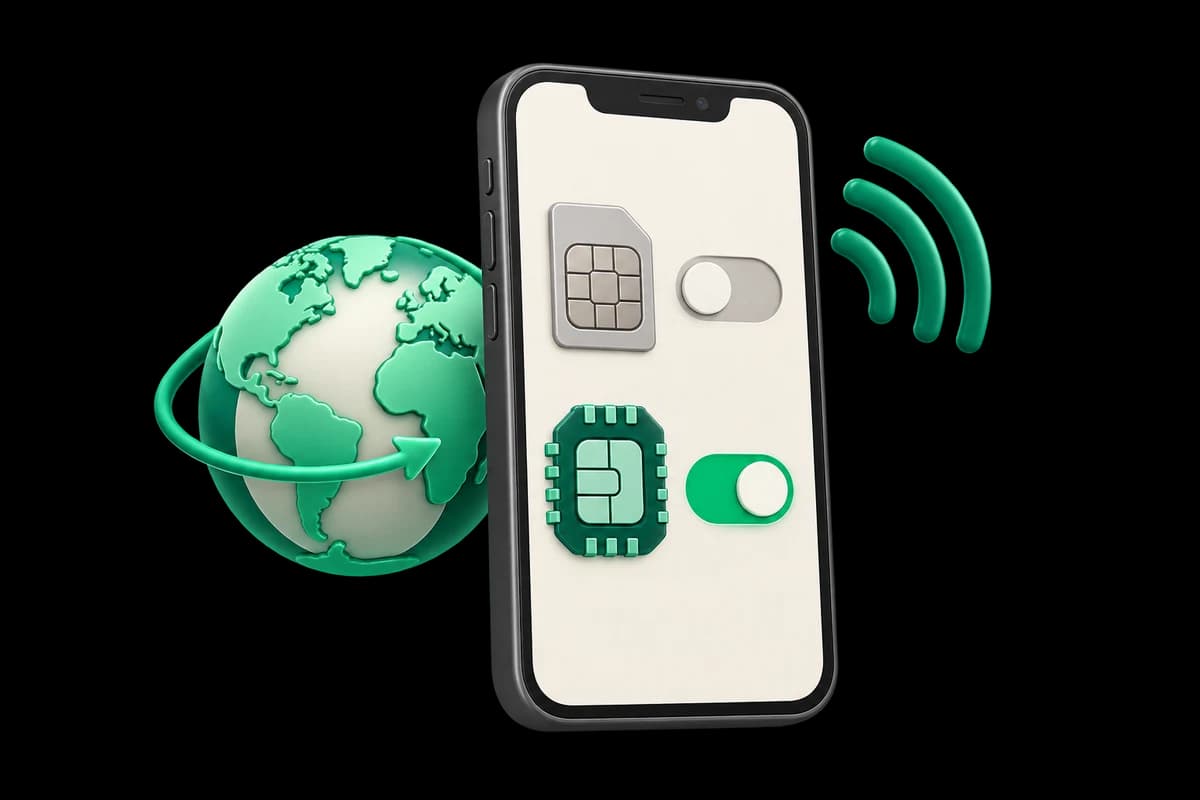
Select your travel eSIM for mobile data. Keep your home line separate for your existing number when needed.
Home SIM
Mobile data
Off / not selectedData roaming
Off / not selectedTravel eSIM
Mobile data
On / selectedData roaming
On / selectedAutomatic data switching: off
Prevent the phone from falling back to your home line for mobile data.
Example settings, not a device-status check. Home-line calls, SMS or other carrier services may still incur charges. Follow your plan instructions; enabling travel-line roaming does not start every plan in the same way.
- 1
Covered destination
Check the countries, network list, validity and data allowance of your plan.
- 2
Travel line selected
Enable the eSIM, select it for data and follow its roaming instructions.
- 3
Test mobile data
Turn Wi-Fi off briefly and open a page. If it fails, use the checks below.
COMMON ISSUES, CLEAR NEXT STEPS
Find the symptom. Follow the next step.
Start with the matching check. Keep the installed profile while troubleshooting; deleting it can make recovery harder.
QR does not scan
Connect to stable Wi-Fi, open the device's Add eSIM settings, and display the QR clearly on another screen or a printout. Use manual installation details only if supplied, following the provider's instructions. If the code is already used or still fails, contact contact@esimstore.online. Do not delete an installed profile to retry.
Signal, but no internet
Check that you are within the plan's coverage, it is valid and has data remaining, and the travel eSIM is enabled and selected for mobile data. Check data roaming and APN settings according to the provider's instructions; do not invent APN values. Try airplane mode briefly or restart the phone. If it still fails, contact support without deleting the eSIM.
Order email is missing
Check the inbox, spam, and promotions folders for the email address used at checkout. Confirmed payment triggers the QR email when the eSIM is ready. Allow up to 1 hour for verification and delivery, and do not pay again while waiting. If it is still missing after that, contact contact@esimstore.online with your email and order ID, if available.
Profile was deleted
Do not assume the QR code can be reused or the profile reinstalled. Contact contact@esimstore.online with your order ID and device details before attempting another installation. Recovery or replacement depends on the provider and is not guaranteed.
Sharing the connection
Yes: eSIM Access enables hotspot/tethering, subject to your phone supporting it. Select the travel eSIM for data, enable its required roaming settings, and turn on Personal Hotspot or Wi-Fi hotspot. Shared traffic uses the same allowance and fair-use limits. Follow the delivered APN instructions if hotspot does not work; do not guess APN values.
Choosing enough data
Maps, messaging and email generally use less data than video calls, streaming, cloud backups or laptop tethering. Choose an allowance for your trip length and habits, use Wi-Fi for large downloads, disable background backups and check your device’s mobile-data counter. The counter is an estimate, not the provider’s final usage record. Check whether the allowance is total or per day.
Still stuck? Email your order ID, phone model, destination and error. Never send card details, passwords or a public QR.
contact@esimstore.online